
This is the print version of this page. All content is copyright Indezine.com 2000-
2026.
Ever tried copying an object in PowerPoint and found it refuses to sit still when pasted? Instead of landing neatly atop the original—like a twin returning to its bunk bed—it drifts off like a rebellious balloon, as shown in Figure 1, below. This default offset paste behavior can be especially annoying when working with precise layouts, animations, or rotational effects that demand pixel-perfect placement. That’s where VBA steps in like a backstage ninja, letting you paste objects exactly where you want—no nudging required.
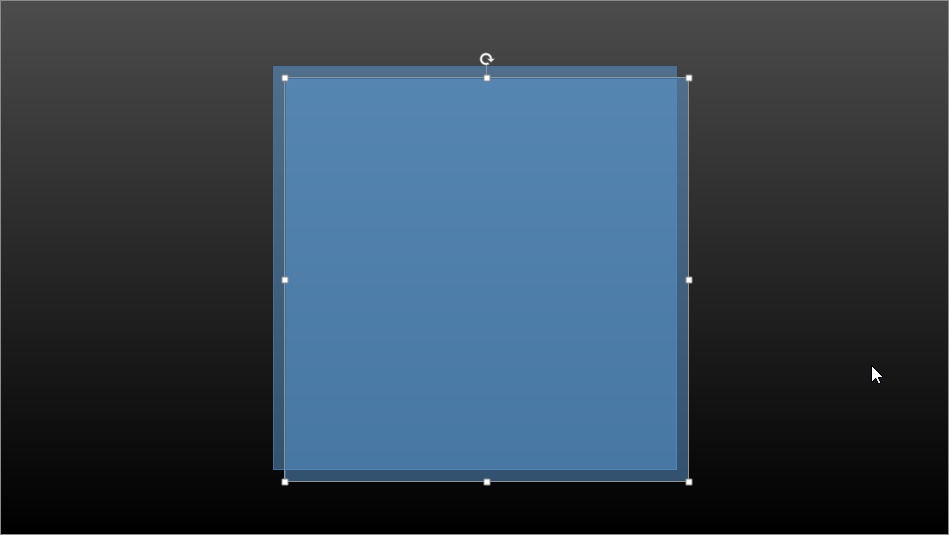
Figure 1: Pasted object is offset from the original
Before you unleash your PowerPoint-fueled sorcery, here’s the first step: you need to know how to run VBA scripts in PowerPoint. Think of it like discovering a hidden trapdoor backstage — once you find it, you can rig all kinds of magical effects.
It’s not complicated, but it’s a bit like finding the remote that controls the presentation behind the curtain. Once you’re in, you’ll meet VBA — Visual Basic for Applications — a kind of techy whisperer that tells PowerPoint to behave exactly the way you want. Like pasting objects exactly in place instead of letting them wander like lost ducks.
Then, you will use this code. Explore the code a bit though.
Option Explicit

Sub PasteInPlace()

Dim sld As Slide
Dim shp As Shape

Set sld = Application.ActiveWindow.View.Slide

Dim y As Single
Dim x As Single

y = ActiveWindow.Selection.ShapeRange.Top
x = ActiveWindow.Selection.ShapeRange.Left

Windows(1).Selection.Copy
ActivePresentation.Slides(sld.SlideIndex).Shapes.Paste

ActivePresentation.Slides(sld.SlideIndex).Shapes(ActivePresentation.Slides(sld.SlideIndex).Shapes.Count).Top = y
ActivePresentation.Slides(sld.SlideIndex).Shapes(ActivePresentation.Slides(sld.SlideIndex).Shapes.Count).Left = x
End Sub
Alright, you’ve just dropped that magical VBA code into PowerPoint’s secret command center — the VBA Editor. Now, close that window and return to your slide deck like a superhero stepping back from their gadget lab.
But hold up! Before you start testing your macro-powered wizardry, save your file — and not just any old way. You need to use the PowerPoint Macro-Enabled Presentation format — the one with the .PPTM extension. If you save as any of the other file formats, PowerPoint will offer to remove the macros, and then, of course, the code to paste in place will not work! See our PowerPoint File Formats page to learn about these file formats.
Now that your macro is ready for action, it’s time to flip the switch — like starting the popcorn machine before movie night.
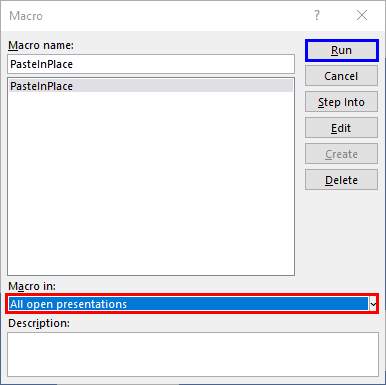
We ran this code using PowerPoint 365 for Windows, and it behaved like a well-trained puppy — responsive, obedient, and surprisingly agile. Now here’s the twist: we haven’t tried it on PowerPoint 365 for Mac yet. It might work like a charm… or throw a tantrum like a vending machine that eats your coins. Only a brave Mac user can tell us! So, if you give this VBA code a spin on your Mac — and it does work (or even if it flat-out rebels) — we’d love to hear about it. Drop us a comment below like you’re giving Yelp feedback for a secret recipe.
Windows users, you’re not off the hook either! If you spot quirks, bonus tricks, or even just want to say “Yep, this worked!” — share your thoughts too. Community wisdom beats lone-wolf coding any day!
Many thanks to Marcin Mikuszewski who suggested some changes to the code. Thanks for helping this community, Marcin.
You May Also Like: Use VBA in PowerPoint, Even if You Can’t Program for Nuts | Resources on PowerPoint Programming and VBA



Filed Under:
Programming
Tagged as: PowerPoint, Programming, Snippets, VBA
Comments Off on VBA Code: Paste in Place
Microsoft and the Office logo are trademarks or registered trademarks of Microsoft Corporation in the United States and/or other countries.